
Diagnostics and Bug Reports
Smart Mark records nothing until you ask it to. When something misbehaves, switch Diagnostics on, reproduce it once, and copy a short report you can paste into a bug report - it never leaves your device.
INFO
Available from Smart Mark 1.1.0. If your installed version is older, this feature arrives with the next Chrome Web Store update.
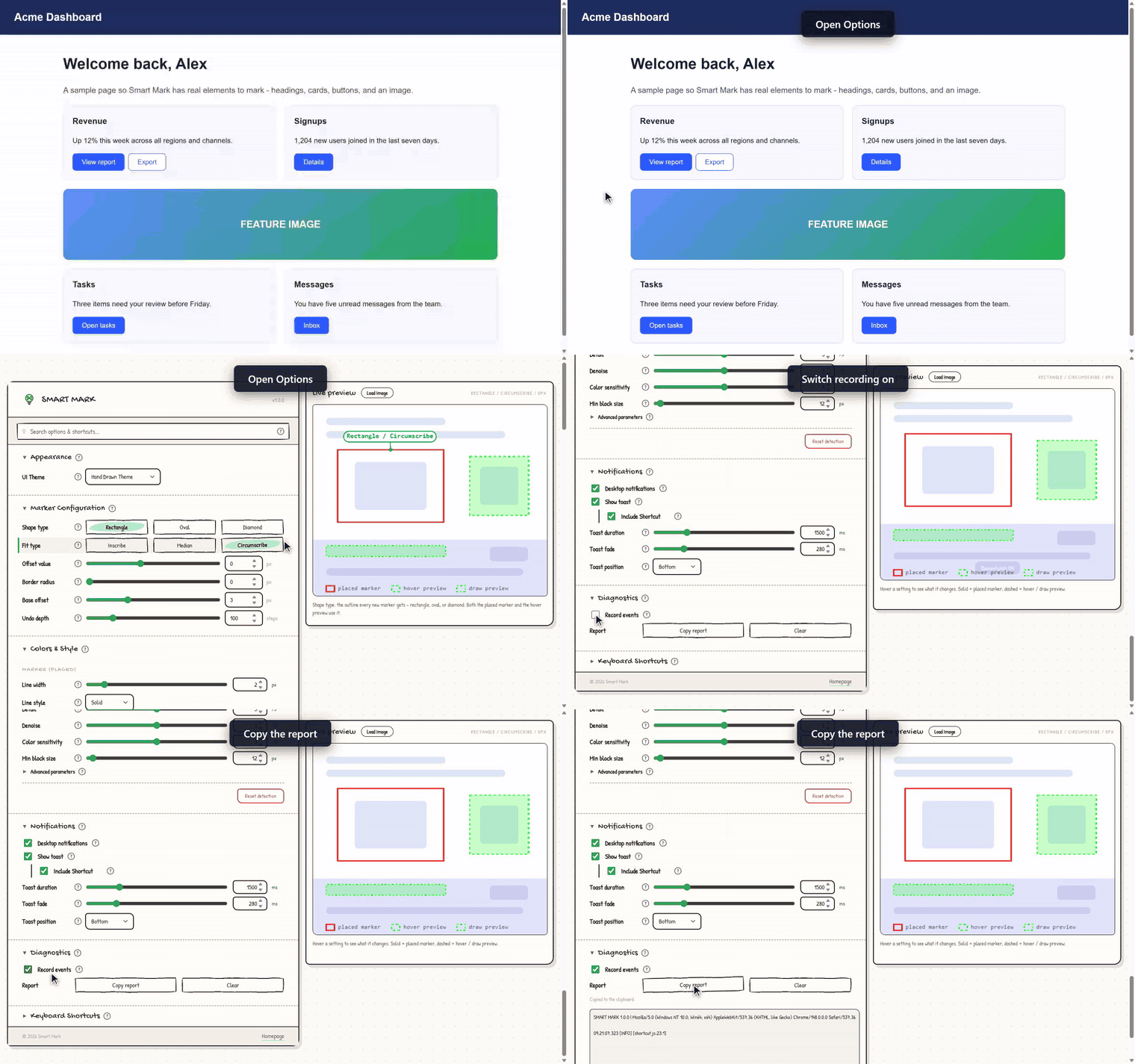
Before you start
- Open the Options page (
Ctrl + Alt + ,) and expand Diagnostics.
Step by step
- Tick
Record events. From now on Smart Mark stores its own recent activity in this browser. Ticking it right after a problem still catches that run, as long as you have not reloaded the page. - Go back to the page and reproduce the problem once.
- Return to Options > Diagnostics and press
Copy report. The report goes to your clipboard and into the box below the buttons, so you can select it by hand if the clipboard is blocked. - Paste it into your bug report at the issue tracker.
- Untick
Record eventswhen you are done. That also deletes what was recorded;Cleardeletes it without switching off.
What the report contains
- A header: extension name, version, and your browser's user-agent string.
- Up to 200 timestamped lines of Smart Mark's own activity: mode changes, the steps of a detection run, warnings, errors with their first stack line, and any uncaught error on the page.
- It does not contain the page content, the page address, your keystrokes, your markers, or anything about you.
What it costs you
- Nothing is written to storage while the switch is off - that is how it ships. The page only keeps the last 200 lines in memory, and they are gone on reload.
- While on, the log is capped: 200 entries, each cut to 300 characters, so under 70 KB in the browser's own extension storage (Chrome allows 10 MB).
- Only the newest 200 entries are kept; older ones fall off by themselves.
- Switching off, pressing Clear, or removing the extension deletes it.
Where it never goes
- No server, no analytics, no upload. The report only travels when you paste it somewhere yourself.
- It is stored per device and is not part of Chrome sync, so it does not travel to your other browsers.
- It is also not part of a profile or preset file, so exporting a profile never carries it.
Shortcuts used here
| Keys | Action |
|---|---|
Ctrl + Alt + , | open the Options page where Diagnostics lives |
The combos above are the defaults; every one of them can be rebound on the Options page.