
Smart Mark
Mark and highlight any web page with keyboard shortcuts.
Smart Mark lets you mark and highlight any element or area on a web page using keyboard shortcuts - outline elements, draw areas, and save layouts. Point with the mouse, act with the keys: no toolbar, no menus. No data collected; everything stays on your device.
Quick start
- Install Smart Mark and pin its icon to the toolbar.
- Open any normal web page and press
Alt + Zto turn on Element mode. - Hover an element and press
Shift + Z- that is your first marker. PressEscto exit.
Core features
Each block below sums up one feature; the link at the end of a block opens its full guide.
Element Marking
Hover over any element on a web page - a button, image, card, or paragraph - and drop a clean box marker that hugs that element. Great for pointing things out in screenshots, bug reports, and tutorials.
| Keys | Action |
|---|---|
Alt + Z | toggle Element mode |
Shift + Z | place or remove a marker on the hovered element |
Ctrl + Shift + Z | click to remove element markers |
Ctrl + Shift + Alt + Z | remove all element markers |
Free Draw
Draw a rectangular marker anywhere on the page, not tied to any element. Drag it out freely, or click two opposite corners for precision.
| Keys | Action |
|---|---|
Alt + X | turn on Free Draw mode (drag to draw) |
Shift + X | switch to two-click corner mode |
Ctrl + Shift + X | click to remove free-draw markers |
Ctrl + Shift + Alt + X | remove all free-draw markers |
Element Merge
Mark a precise rectangular area defined by two elements. The box spans from the first element's top-left corner to the second element's bottom-right corner - perfect for marking a whole section that covers several elements.
| Keys | Action |
|---|---|
Alt + Q | turn on Merge mode, then click two elements |
Ctrl + Shift + D | click to remove any marker |
Ctrl + Shift + Alt + D | remove all markers on the page |
Esc | exit the mode |
Shape and Fit
Change the marker shape (Rectangle, Oval, Diamond) and how tightly it fits its target, on the fly with the keyboard. The change applies to the markers you draw next, in any marking mode.
| Keys | Action |
|---|---|
Alt + O | cycle shape: Rectangle, Oval, Diamond |
Alt + W | cycle fit: Inscribe, Median, Circumscribe |
Alt + = | offset +5 px (coarse) |
Alt + - | offset -5 px (coarse) |
Image Marking
When a page is one big image, a video, an SVG, or a screenshot, there is no element to hover. Image marking scans the page, finds the visual blocks, and lets you pick them by click or with one key.
| Keys | Action |
|---|---|
Alt + I | scan the page and show the numbered blocks (press again to leave) |
Esc | leave the mode and remove the numbered boxes |
Smaller features
Save and Load Layouts
Save the markers on a page into a numbered slot, then restore them any time - up to 10 slots per page. Great for reusable review checklists or coming back to a page later.

| Keys | Action |
|---|---|
Ctrl + Shift + Alt + 0-9 | save current markers to slot N |
Alt + 0-9 | load markers from slot N (replaces current) |
Full guide: Save and Load Layouts
Undo and Redo
Step backward and forward through your marking actions, so a mistake is never more than one keypress away.

| Keys | Action |
|---|---|
Ctrl + Z | undo the last marker action |
Ctrl + Y | redo the last undone action |
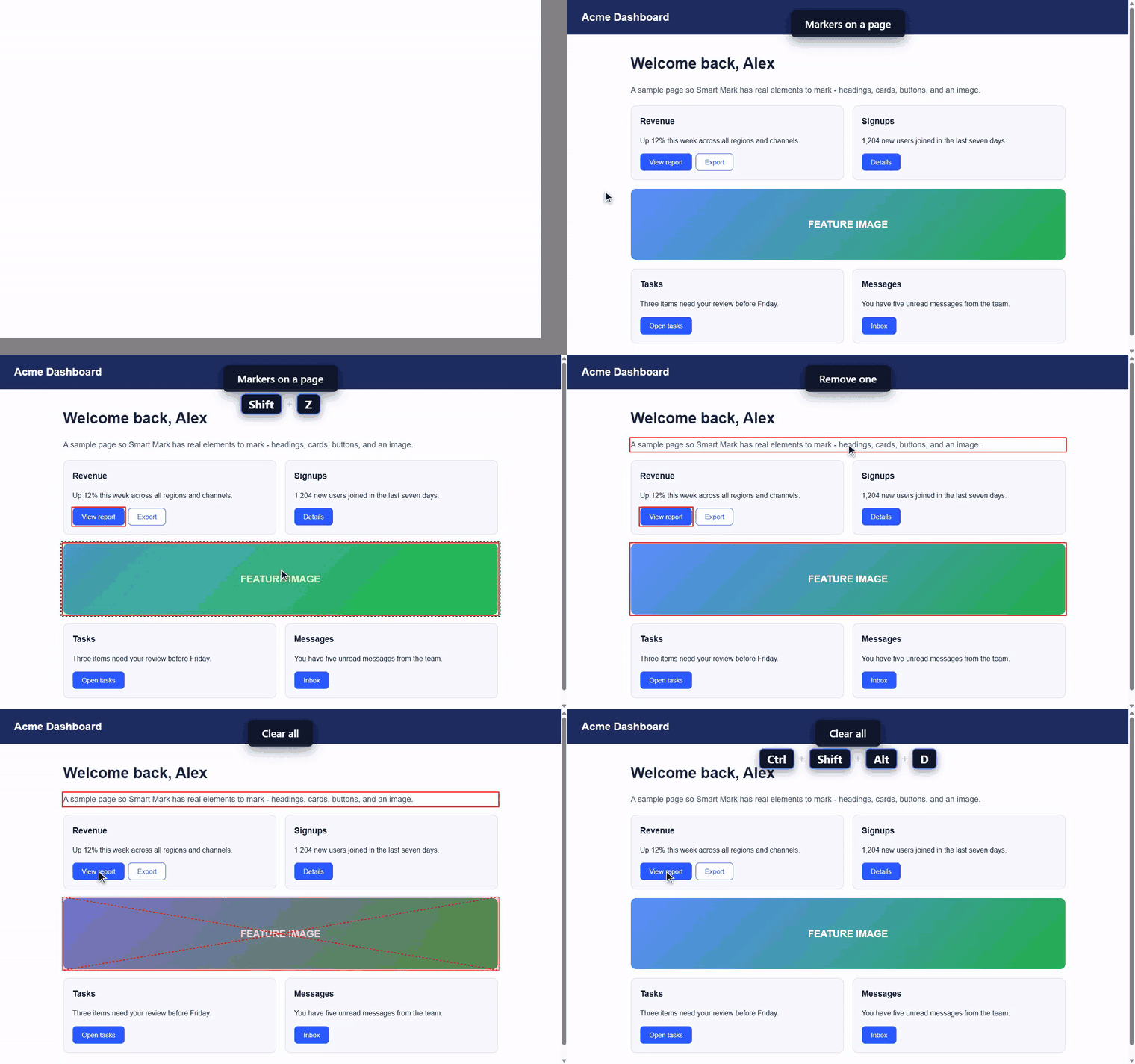
Remove Markers
Remove one marker by clicking it, or clear the whole page at once - works across every marking mode.
| Keys | Action |
|---|---|
Ctrl + Shift + D | click to remove any single marker |
Ctrl + Shift + Alt + D | remove all markers on the page |
Esc | exit remove mode |
Hide Layers
A cookie banner, a sticky header, or a popup covers what you want to mark? Hide it with one click, mark what is under it, and bring it back when you are done. Nothing on the page is deleted.

| Keys | Action |
|---|---|
Alt + A | toggle Hide mode, then click a layer to hide it |
Ctrl + Shift + Alt + A | show every hidden layer again (one undo step) |
Ctrl + Z | undo the last step, a hide included |
Esc | leave Hide mode |
Mark Selected Text
Select some text, right-click it, and mark exactly that text: as one box around it, or as a highlight band on each line, like a highlighter pen.

| Keys | Action |
|---|---|
Ctrl + Z | undo the last mark, a whole highlight included |
Ctrl + Alt + , | open the Options page to bind the shortcut |
Full guide: Mark Selected Text
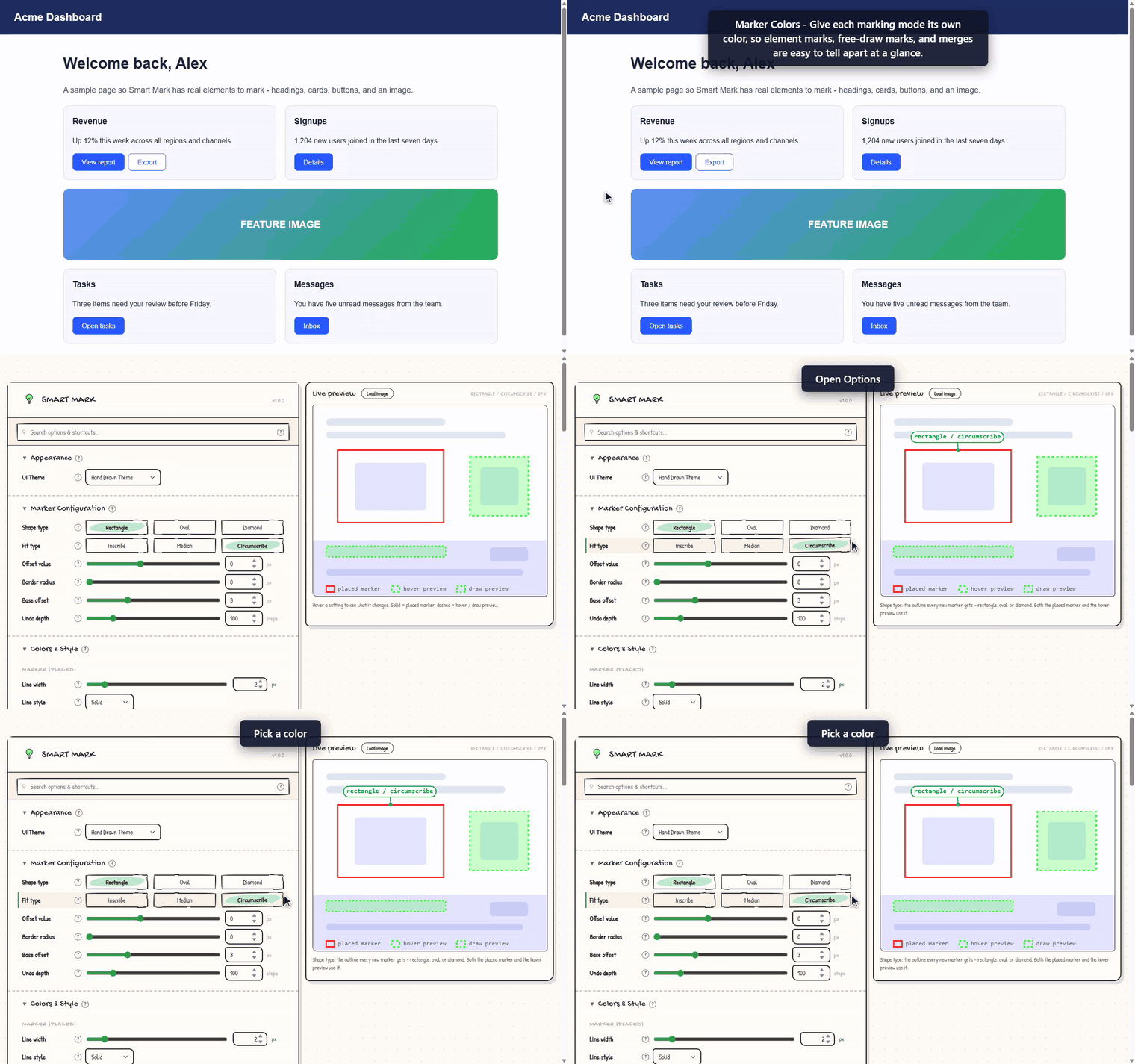
Marker Colors
Give each marking mode its own color, so element marks, free-draw marks, and merges are easy to tell apart at a glance.
| Keys | Action |
|---|---|
Ctrl + Alt + , | open the Options page where colors live |
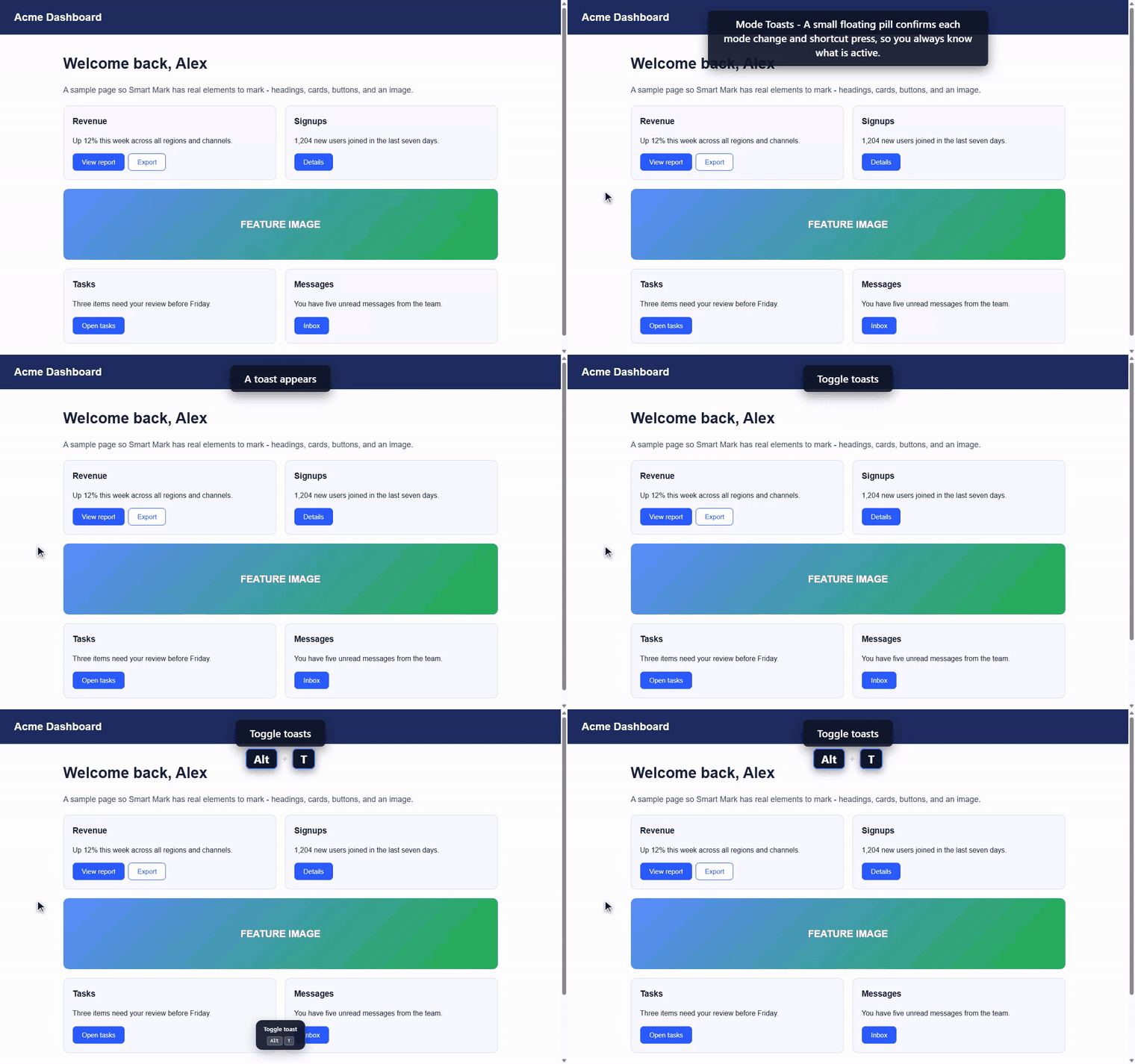
Mode Toasts
A small floating pill confirms each mode change and shortcut press, so you always know what is active. You can turn it off or hide the key combo.
| Keys | Action |
|---|---|
Alt + T | toggle the shortcut toast on/off |
Custom Shortcuts
Set the key combos that fit your hands from the Options page - no reload needed. Almost every shortcut can be changed, and any one can be switched off.

| Keys | Action |
|---|---|
Ctrl + , | open the popup |
Ctrl + Alt + , | open the Options page |
Popup and Options
Open a compact popup for quick marker settings, or the full Options page for everything - colors, shapes, slots, notifications, and shortcuts - all without leaving the keyboard.

| Keys | Action |
|---|---|
Ctrl + , | open the popup |
Ctrl + Alt + , | open the Options page |
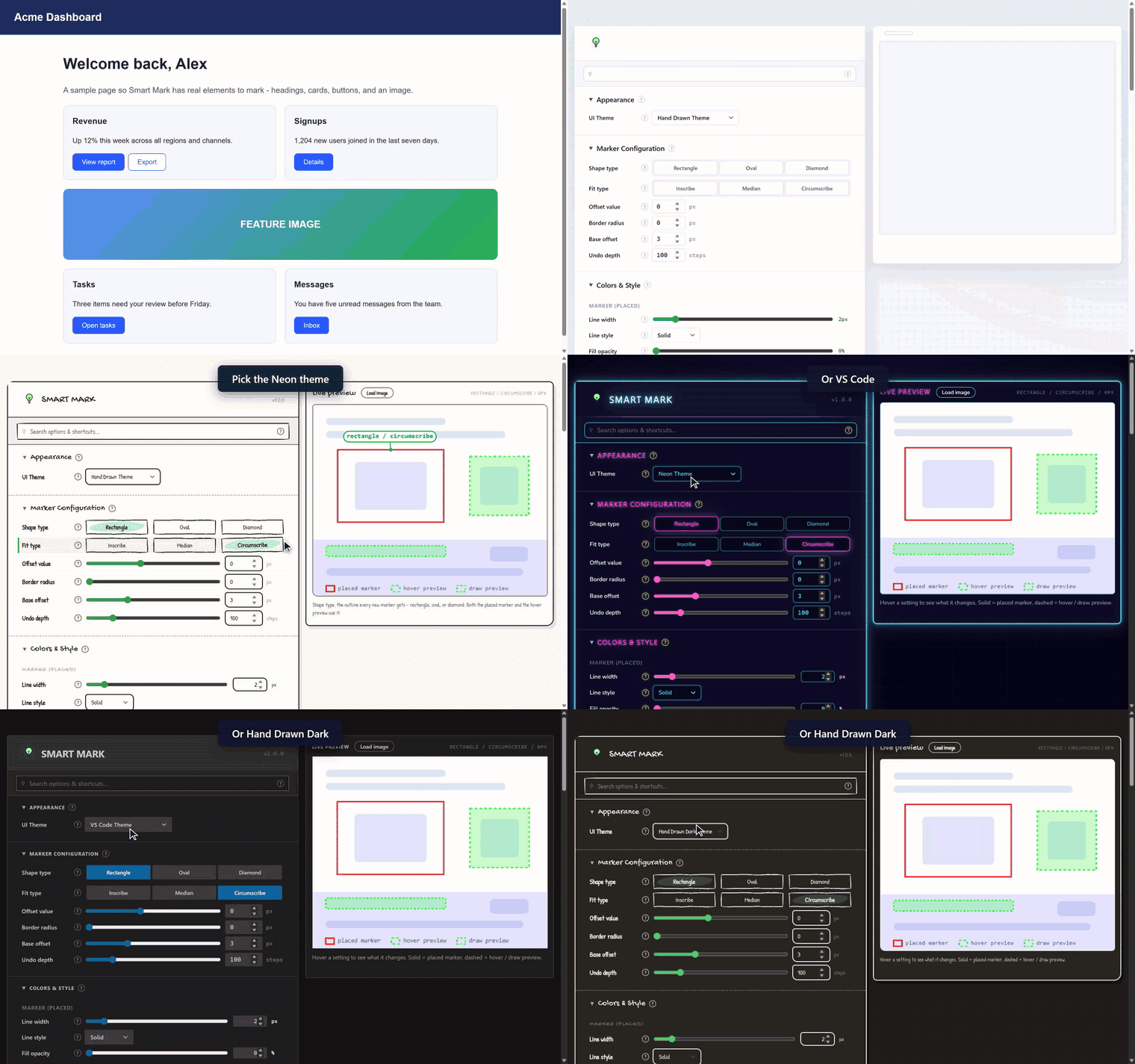
UI Themes
Change the look of the popup and the Options page. Six themes ship, light and dark. Markers on web pages look the same in all of them.
| Keys | Action |
|---|---|
Ctrl + Alt + , | open the Options page where the theme select lives |
Settings Search
Find any setting, section, or shortcut by typing a word or a key combo. It works in both the popup and the Options page, and it only filters and jumps - it never runs an action.
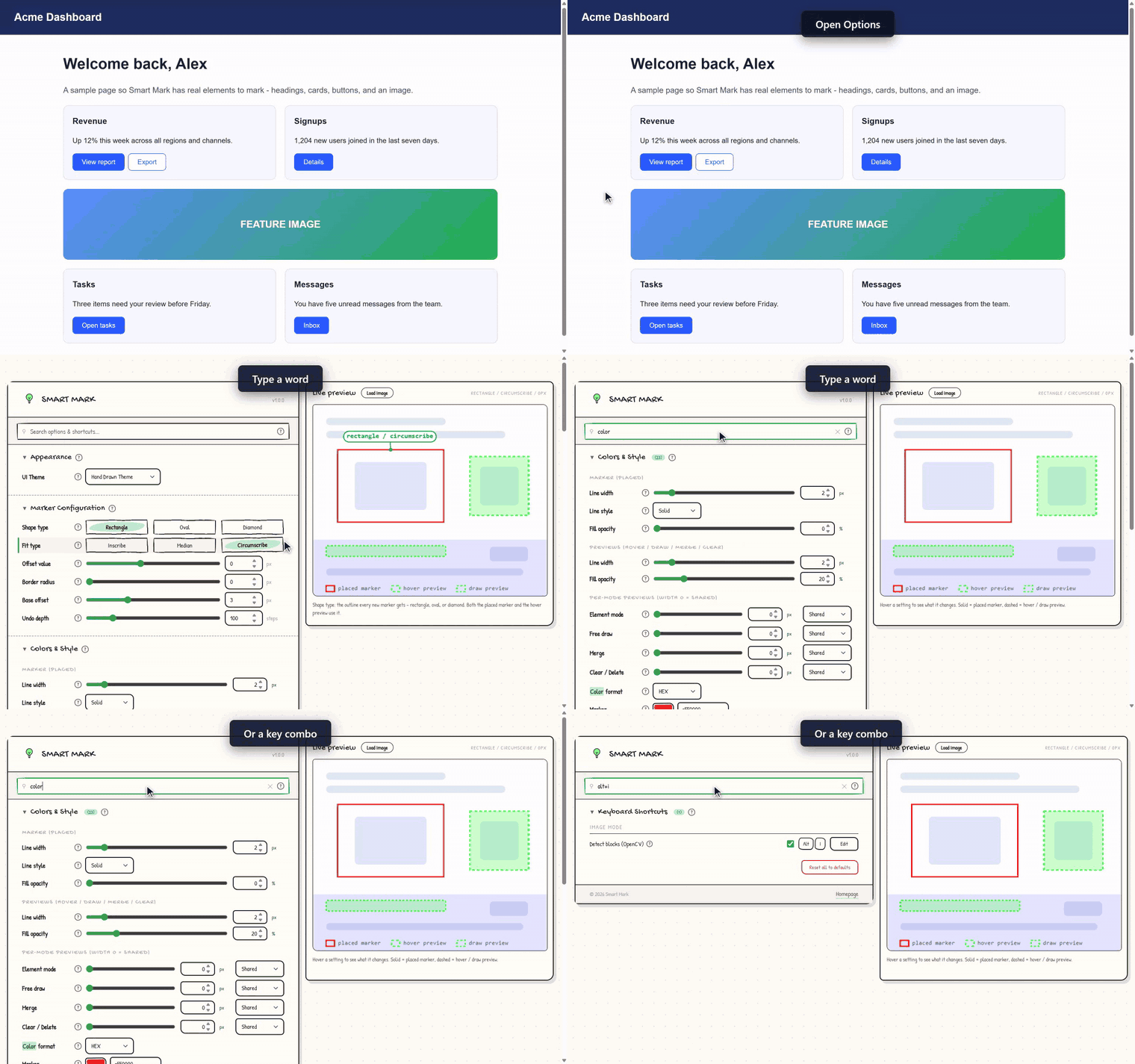
| Keys | Action |
|---|---|
Ctrl + , | open the popup |
Ctrl + Alt + , | open the Options page |
Profiles and Presets
Save your whole set-up - every setting, your marker slots, and your presets - as a named profile. Switch between profiles, apply a preset such as Highlighter, move a set-up to another computer as a file, and undo a change you regret.

| Keys | Action |
|---|---|
Ctrl + Alt + , | open the Options page where Profiles live |
Full guide: Profiles and Presets
Screenshot with Markers
Download a PNG of the page with your markers drawn on it - ready to paste into a bug report, a document, or a chat.

| Keys | Action |
|---|---|
Ctrl + Shift + Alt + S | download a PNG of the page with its markers |
Full guide: Screenshot with Markers
Marker Style
Decide how markers look and behave: line width, solid, dashed or dotted lines, fill opacity, how dark the overlay gets, how long a toast stays, and how many steps undo remembers. Every change applies live.

| Keys | Action |
|---|---|
Ctrl + Alt + , | open the Options page where the style rows live |
Typing and Site Access
Smart Mark stays out of your way: shortcuts pause while you type, a key is only taken when there is something to do, and you can switch the extension off on the sites you choose.

| Keys | Action |
|---|---|
Ctrl + , | open the popup (Disable on this site is in its footer) |
Ctrl + Alt + , | open the Options page (Site access section) |
Full guide: Typing and Site Access
Diagnostics and Bug Reports
Smart Mark records nothing until you ask it to. When something misbehaves, switch Diagnostics on, reproduce it once, and copy a short report you can paste into a bug report - it never leaves your device.
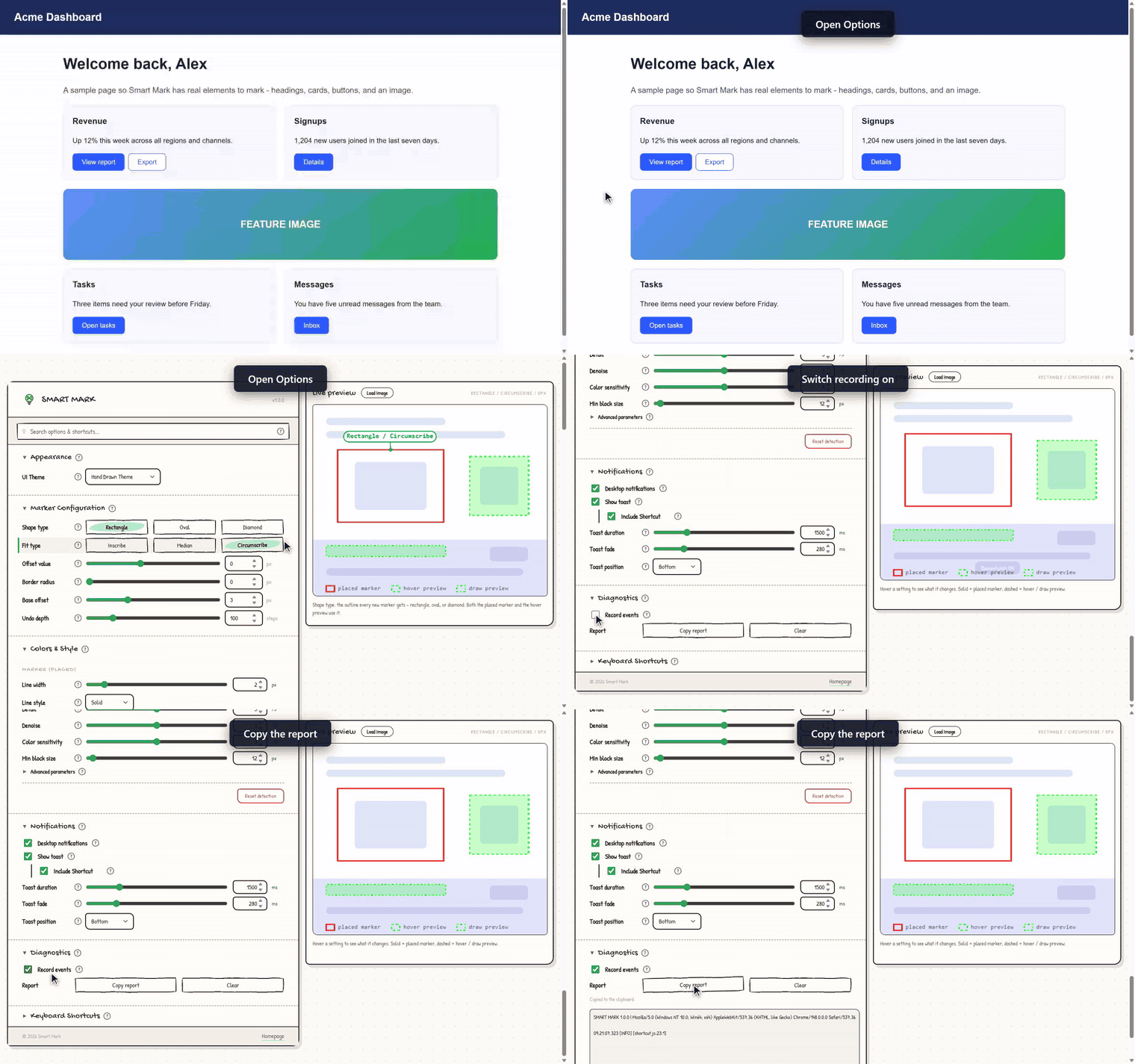
| Keys | Action |
|---|---|
Ctrl + Alt + , | open the Options page where Diagnostics lives |
Full guide: Diagnostics and Bug Reports
Learn more
Frequently asked questions, privacy and links are on the About page. About